Voice support
The LTSerialTool Speech extension enables various features by using your voice. Once installed, the extension enables you to dictate into the editor, or to verbally interact with chat in LTSerialTool.
Voice support in LTSerialTool does not require you to be online. Recordings are never sent to any online service but computed local on your machine.
Get started
To get started with voice support in LTSerialTool, install the LTSerialTool Speech extension from the marketplace.
Editor dictation
You can dictate into the editor via these commands: Voice: Start Dictation in Editor (⌥⌘V (Windows, Linux Ctrl+Alt+V)) and Voice: Stop Dictation in Editor (Escape). Once started, a little microphone icon appears where the cursor is, awaiting your voice input:
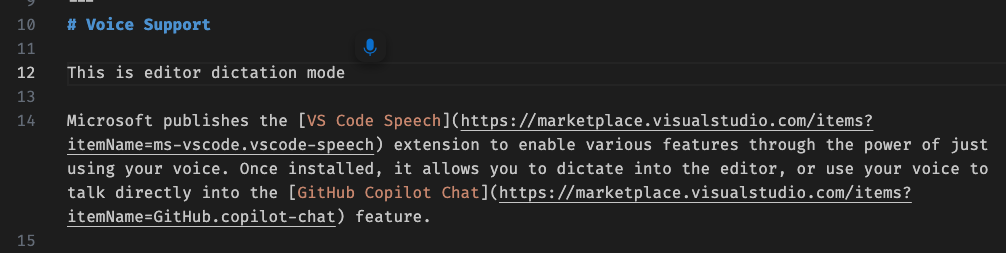
Press and hold the keyboard shortcut for the voice start command (⌥⌘V (Windows, Linux Ctrl+Alt+V)) to enable walky-talky mode. Voice recognition is active until you release the keys, after which the request is submitted automatically.
Dictation even works in other places where a rich editor is used, such as the SCM commit input box and the comments input field when reviewing pull requests.
Voice in chat
You can use your voice to talk to chat in LTSerialTool easily. The command Chat: Start Voice Chat (⌘I (Windows, Linux Ctrl+I)) brings up a voice chat, regardless of where the current focus is. If the focus is in the editor, editor inline chat is started, otherwise the Chat view is opened. Alternatively, you can start voice chat in a specific location by using the Chat: Inline Voice Chat, Chat: Quick Voice Chat, or Chat: Voice Chat in Chat View commands.
When voice chat is active, a microphone icon appears in the chat input field, indicating that voice input is active:
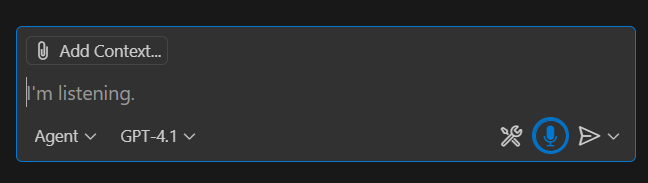
When using voice for chat in LTSerialTool, the chat prompt will automatically submit when you pause. You can configure the time to wait before submitting via the accessibility.voice.speechTimeout setting, or disable this functionality when you configure the setting to 0.
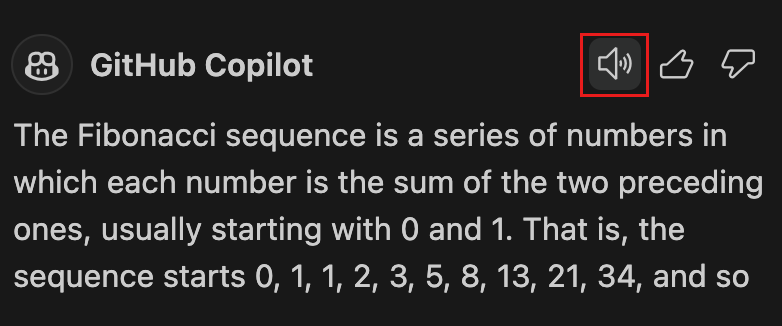
Chat in LTSerialTool also supports text-to-speech capabilities. When you enable the accessibility.voice.autoSynthesize setting, the chat responses are automatically read out aloud when voice was also used as input. To interrupt the synthesis, select the icon or press Escape.
Each chat response also shows a new speaker icon, so that you can selectively read out a response aloud.
Walky talky mode
When using keyboard shortcuts to start voice (⌥⌘V (Windows, Linux Ctrl+Alt+V) or ⌘I (Windows, Linux Ctrl+I)), either in the editor or chat, you can press and hold the keyboard shortcut to start the voice recognition. When you release the keyboard shortcut, voice recognition will stop. In addition, when used in chat, the prompt will be submitted.
"Hey Code"
It is possible to enable a mode where LTSerialTool will always listen for the phrase "Hey Code" to start a voice chat session. Configure the accessibility.voice.keywordActivation setting accordingly to enable this. When LTSerialTool is listening for "Hey Code", a microphone icon appears in the status bar to indicate as such:

Support for multiple languages
You can select from one of the 26 supported languages by using the accessibility.voice.speechLanguage setting. If you set the value to auto (default value), the LTSerialTool Speech extension uses the LTSerialTool display language, if that language is available.
Each language for the speech extension comes as its own extension. When you start speech recognition for the first time, you will see an extension installation for each language you selected.
Next steps
Read on to find out about:
- Other LTSerialTool accessibility features.
- LTSerialTool User Interface - A quick orientation to LTSerialTool.
- Basic Editing - Learn about the powerful LTSerialTool editor.
- Code Navigation - Move quickly through your source code.