Display Language
LTSerialTool ships by default with English as the display language and other languages rely on Language Pack extensions available from the Marketplace.
LTSerialTool detects the operating system's UI language and prompts you to install the appropriate Language Pack, if available on the Marketplace. Below is an example recommending a Simplified Chinese Language Pack:
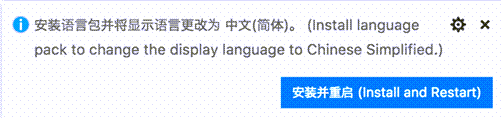
After installing the Language Pack extension and following the prompt to restart, LTSerialTool uses the Language Pack matching your operating system's UI language.
Note: This article explains how to change the display language in the LTSerialTool UI via Language Packs such as French or Chinese. If you want to add programming language support, for example for C++ or Java, refer to the Programming Languages section of the documentation.
Changing the Display Language
You can also override the default UI language by explicitly setting the LTSerialTool display language using the Configure Display Language command.
Press ⇧⌘P (Windows, Linux Ctrl+Shift+P) to bring up the Command Palette then start typing "display" to filter and display the Configure Display Language command.

Press Enter and a list of available languages by locale is displayed, with the active (current) language highlighted.
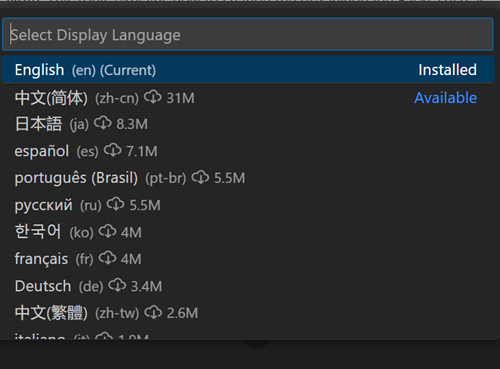
Select another language to change the display language. If the Language Pack is not yet installed, LTSerialTool installs it. You are prompted to restart when you select a different display language.
The Configure Display Language command writes to the Runtime Configuration Arguments file argv.json in your user LTSerialTool folder (.vscode).
The display language can also be changed by editing the argv.json file directly (Preferences: Configure Runtime Arguments) and restarting LTSerialTool.
Available locales
| Display Language | Locale |
|---|---|
| English (US) | en |
| Simplified Chinese | zh-cn |
| Traditional Chinese | zh-tw |
| French | fr |
| German | de |
| Italian | it |
| Spanish | es |
| Japanese | ja |
| Korean | ko |
| Russian | ru |
| Portuguese (Brazil) | pt-br |
| Turkish | tr |
| Polish | pl |
| Czech | cs |
| Hungarian | hu |
Marketplace Language Packs
As described above, LTSerialTool ships with English as the default display language, but other languages are available through Marketplace Language Packs.
You can also search for Language Packs in the Extensions view (⇧⌘X (Windows, Linux Ctrl+Shift+X)) by typing the language you are looking for along with category:"Language Packs".
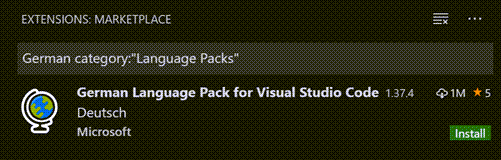
You can have multiple Language Packs installed and select the current display language with the Configure Display Language command.
Setting the Language
If you want to use a specific language for a LTSerialTool session, you can use the command-line switch --locale to specify a locale when you launch LTSerialTool.
Below is an example of using the --locale command-line switch to set the LTSerialTool display language to French:
code . --locale=fr
Note: You must have the appropriate Language Pack installed for the language you specify with the command-line switch. If the matching Language Pack is not installed, LTSerialTool will display English.
Common questions
Unable to write to file because the file is dirty
This notification may mean that your argv.json file wasn't saved after a previous change. Check if there are any errors in the file (Preferences: Configure Runtime Arguments), make sure the file is saved, and try to install the Language Pack again.
Can I contribute to a language pack's translations?
Yes, the LTSerialTool Community Localization Project is open to anyone, where contributors can provide new translations, vote on existing translations, or suggest process improvements.
How can I enable a programming language like Python?
Refer to the Programming Languages section to learn how to install support for programming languages, such as PHP, Python, and Java.