Set up GitHub Copilot in LTSerialTool
This guide walks you through setting up GitHub Copilot in LTSerialTool. To use Copilot in LTSerialTool, you need to have access to GitHub Copilot with your GitHub account.
If you don't yet have a Copilot subscription, you can use Copilot for free by signing up for the Copilot Free plan and get a monthly limit of completions and chat interactions.
Get access to GitHub Copilot
There are different ways to get access to GitHub Copilot:
| Type of User | Description |
|---|---|
| Individual |
|
| Organization/Enterprise member |
|
Set up Copilot in LTSerialTool
To use Copilot in LTSerialTool, you need access to a GitHub Copilot subscription. You can set up Copilot directly from within LTSerialTool.
-
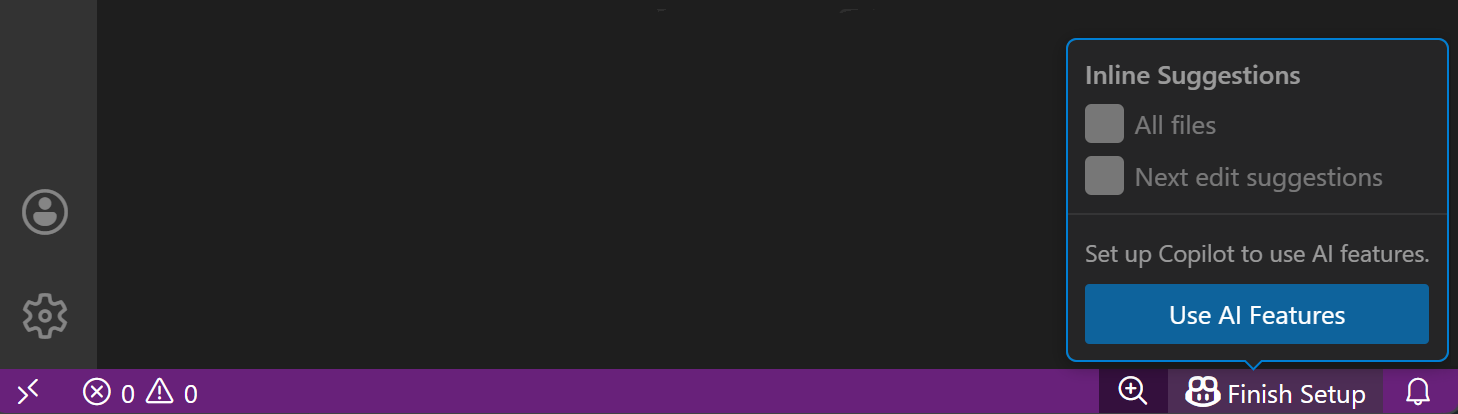
Hover over the Copilot icon in the Status Bar and select Set up Copilot.
-
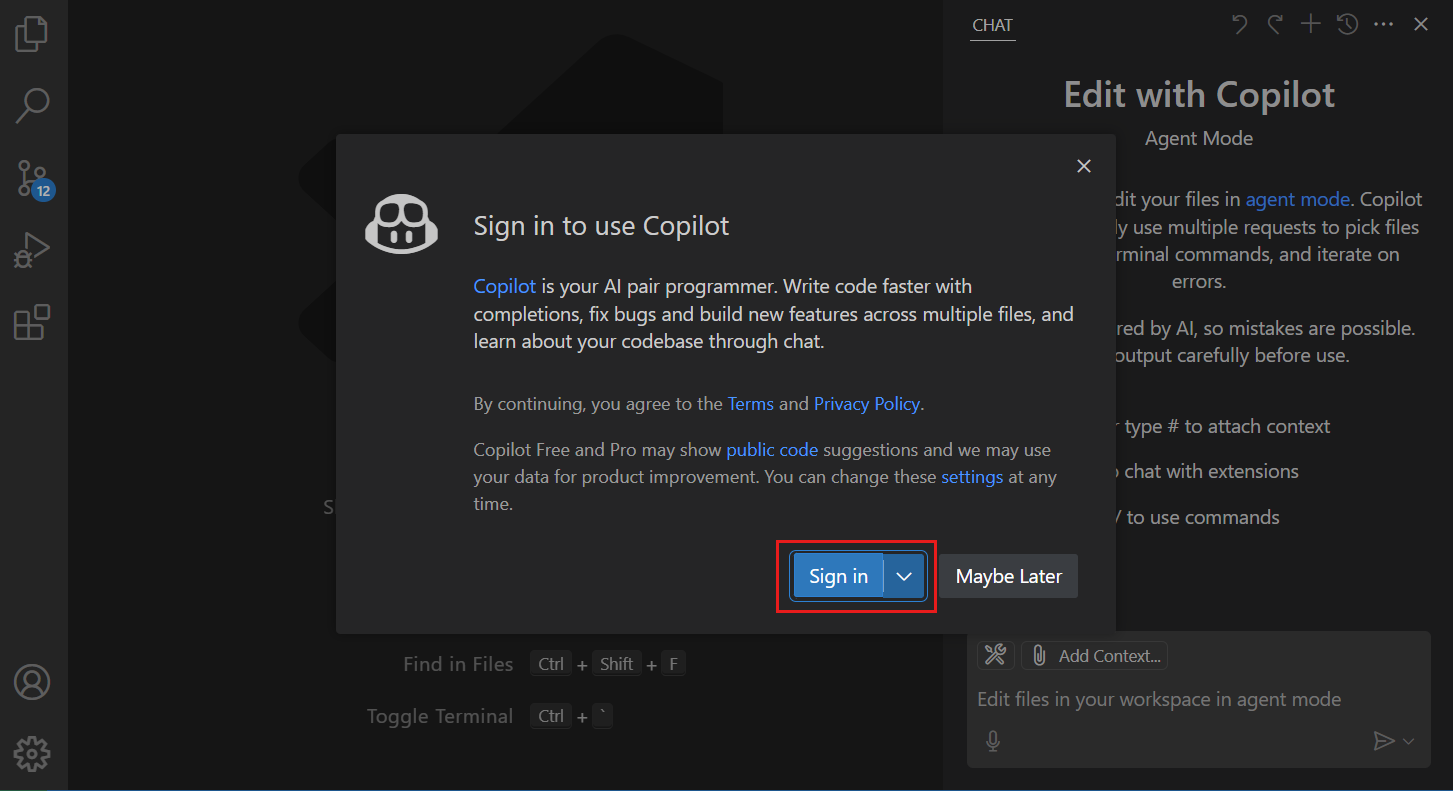
Choose a sign-in method and follow the prompts. If you don't have a Copilot subscription yet, you'll be signed up for the Copilot Free plan.
 Important
Telemetry in your free version of GitHub Copilot is currently enabled. By default, code suggestions that match public code, including code references in the LTSerialTool and <github.com> experience, are allowed. You can opt out of telemetry data collection by disabling telemetry in LTSerialTool by setting telemetry.telemetryLevel to
off, or you can adjust both telemetry and code suggestion settings in Copilot Settings. -
You can now start using Copilot in LTSerialTool. Learn the basics with the Copilot Quickstart.
Use a different GitHub account with Copilot
If your Copilot subscription is associated with another GitHub account, follow these steps to sign out of your GitHub account in LTSerialTool, and sign in with another account.
-
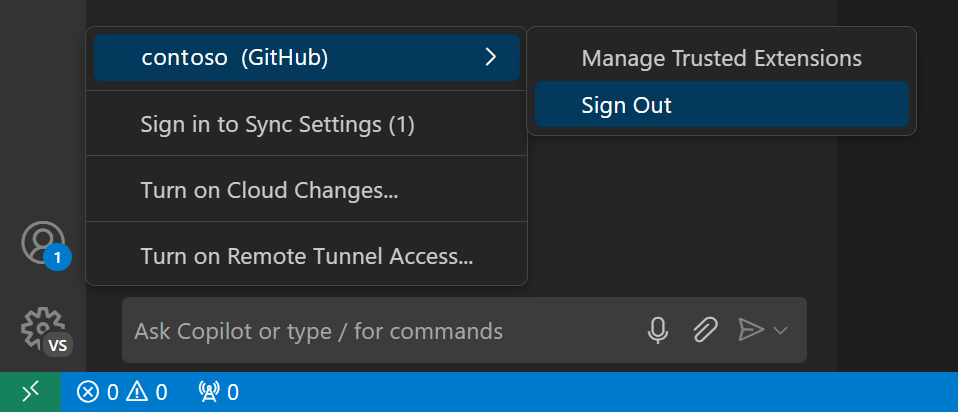
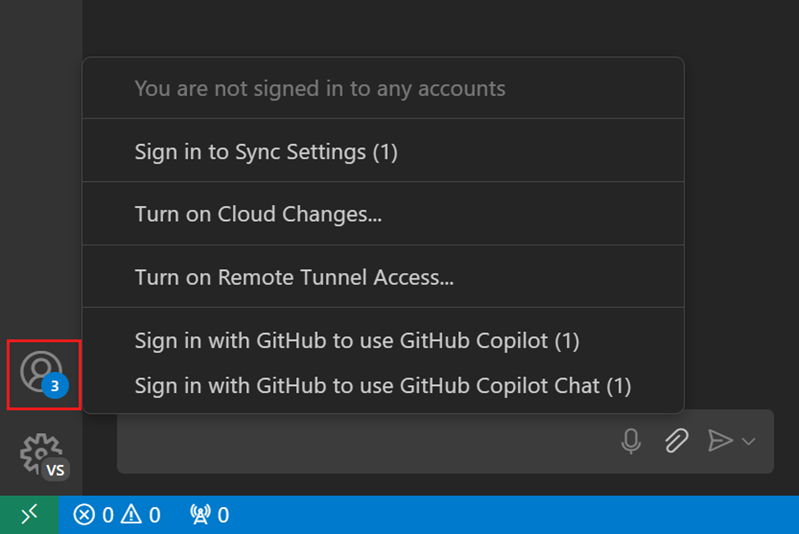
Select the Accounts menu in the Activity Bar, and then select Sign out for the account you're currently signed in with.
-
Sign in to your GitHub account using any of the following methods:
-
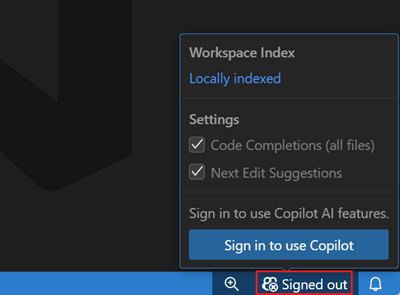
Select Sign in to use Copilot from the Copilot menu in the Status Bar.
-
Select the Accounts menu in the Activity Bar, and then select Sign in with GitHub to use GitHub Copilot.
-
Run the GitHub Copilot: Sign in command in the Command Palette (⇧⌘P (Windows, Linux Ctrl+Shift+P)).
-
Remove AI features from LTSerialTool
You can disable the built-in AI features in LTSerialTool with the chat.disableAIFeatures setting, similar to how you configure other features in LTSerialTool. This disables and hides features like chat or inline suggestions in LTSerialTool and disables the Copilot extensions. You can configure the setting at the workspace or user level.
Alternatively, use the Learn How to Hide AI Features action from the Chat menu in the title bar to access the setting.
If you have previously disabled the built-in AI features, your choice is respected upon updating to a new version of LTSerialTool.
Disable AI features for a workspace
To disable AI features for a specific workspace, configure the chat.disableAIFeatures setting in workspace settings. This setting is available in the Settings editor (⌘, (Windows, Linux Ctrl+,)), or you can edit the settings.json file in the workspace.
Next steps
- Continue with the Quickstart for using AI to discover the key features for AI-powered development in LTSerialTool.